How to Import an Existing Building Block Definition into OpenTofu as-code
This guide explains how to import existing building block definitions from the meshPanel into OpenTofu for infrastructure-as-code management. We use OpenTofu's built-in config generation feature to automatically produce a ready-to-use resource configuration from your live meshStack state — no manual skeleton writing required. After completing this guide, your building block definition will be managed through OpenTofu, allowing you to version control and manage it alongside your other infrastructure code.
Prerequisites
Before you begin, ensure you have:
- A very recent OpenTofu version: You need at least OpenTofu 1.11 for write-only attribute support. We recommend
using the latest available version because config generation (
-generate-config-out) is an experimental feature that still contains bugs in older releases. For example, if your building block definition uses input keys or tags containing dots, older versions generate invalid HCL with unquoted dotted keys (see opentofu#3978). Always verify the generated configuration is syntactically valid. - meshStack Provider configured: You need a working OpenTofu configuration with the meshStack provider set up.
- API key with appropriate permissions: An API key with permissions to read, create and update building block definitions inside the target workspace.
This API key is used to authenticate the
meshstackprovider against the meshStack public API. Note that when creating a new API key, a ready-to-copymeshstackprovider configuration with pre-filled authentication is shown by the meshPanel. - Access to the meshPanel: To retrieve the building block definition UUID.
- Basic OpenTofu knowledge: Familiarity with resources and import blocks.
Step by Step Guide
1. Locate the Building Block Definition UUID
Navigate to the building block definition you want to import in the meshPanel and note its UUID.
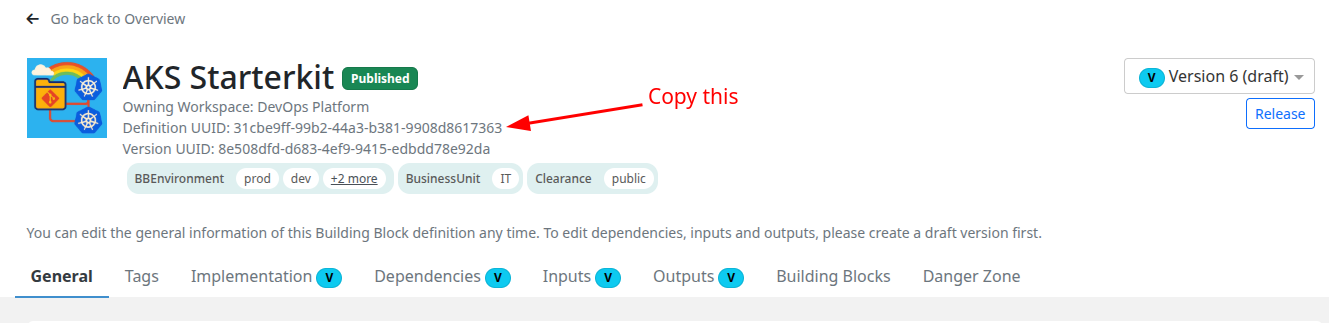
You can find the UUID in the details view of the building block definition.
For this example, we'll use UUID 31cbe9ff-99b2-44a3-b381-9908d8617363.
2. Create an Import Block
Create an OpenTofu configuration file (e.g. import.tf) with only an
import block.
You do not need to write a resource block yourself — OpenTofu will generate it for you in the next step.
import {
  id = "31cbe9ff-99b2-44a3-b381-9908d8617363" # replace with your actual UUID
  to = meshstack_building_block_definition.howto_example
}
3. Generate the Resource Configuration
Run the following command to let OpenTofu read the live state from meshStack and write a complete resource configuration into a new file:
tofu plan -generate-config-out=generated_resources.tf
OpenTofu fetches the current definition from meshStack and writes a generated_resources.tf file that contains the
full meshstack_building_block_definition resource block with all attributes already filled in.
For a deeper explanation of how config generation works, see the OpenTofu generating configuration guide.
Config generation is an experimental OpenTofu feature. Older versions may produce invalid HCL, for example
by leaving dotted attribute keys unquoted (see opentofu#3978).
If tofu plan fails with a syntax error after generation, inspect generated_resources.tf for unquoted keys
like my.dotted.key = ... and add quotes: "my.dotted.key" = .... Using the latest OpenTofu version
minimizes these issues.
The command also prints a plan summary. You should see something like:
meshstack_building_block_definition.howto_example: Preparing import... [id=31cbe9ff-99b2-44a3-b381-9908d8617363]
meshstack_building_block_definition.howto_example: Refreshing state...

OpenTofu will perform the following actions:

  # meshstack_building_block_definition.howto_example will be imported
  # (config will be generated)
    resource "meshstack_building_block_definition" "howto_example" {
        ...
    }

Plan: 1 to import, 0 to add, 0 to change, 0 to destroy.
4. Review the Generated Configuration
Open generated_resources.tf and review the resource block that OpenTofu created. It will look similar to this
(truncated for brevity):
resource "meshstack_building_block_definition" "howto_example" {
  metadata = {
    owned_by_workspace = "devops-platform"
    tags = {
      BBEnvironment = ["prod", "dev", "qa", "test"]
      BusinessUnit  = ["IT"]
      Clearance     = ["public"]
    }
    uuid = "31cbe9ff-99b2-44a3-b381-9908d8617363"
  }

  spec = {
    description  = "The AKS Starterkit provides application teams with..."
    display_name = "AKS Starterkit"
    notification_subscribers = [
      "user:alice@meshcloud.io",
      "user:bob@meshcloud.io",
    ]
    readme           = "..."
    run_transparency = true
    target_type      = "WORKSPACE_LEVEL"
  }

  version_spec = {
    deletion_mode = "DELETE"
    draft         = true
    implementation = {
      terraform = {
        async            = false
        ref_name         = "071f5887cd289ba91e18c281ef3d81b58d3e5021"
        repository_path  = "modules/aks/starterkit/buildingblock"
        repository_url   = "https://github.com/meshcloud/meshstack-hub.git"
        terraform_version = "1.9.0"
      }
    }
    inputs = {
      "creator" = {
        assignment_type        = "AUTHOR"
        description            = "Information about the creator..."
        display_name           = "Creator"
        is_environment         = false
        type                   = "CODE"
        updateable_by_consumer = false
      }
      # ...more inputs
    }
    outputs = {
      "summary" = {
        assignment_type = "SUMMARY"
        display_name    = "Summary"
        type            = "STRING"
      }
    }
    permissions  = ["BUILDINGBLOCK_DELETE", "BUILDINGBLOCK_LIST", "BUILDINGBLOCK_SAVE"]
    runner_ref = {
      kind = "meshBuildingBlockRunner"
      uuid = "66ddc814-1e69-4dad-b5f1-3a5bce51c01f"
    }
    version_number = 6
  }
}
Handling write-only attributes (secrets)
Building block inputs that are marked as secrets use a secret_value write-only attribute. Because OpenTofu cannot
read write-only values back from the provider, the generated file will contain a secret_value = null placeholder
for those inputs:
sensitive = {
  argument = {
    secret_value   = null # sensitive write-only
    secret_version = null
  }
}
You must replace the null value of secret_value before tofu plan can succeed. Depending on your use case, you
have three options:
Option A: Keep the existing secret as-is (recommended for import)
If you simply want to import the building block definition without changing its secrets, write any placeholder value
for secret_value (e.g. "ignored") and leave secret_version as null:
sensitive = {
  argument = {
    secret_value   = "ignored"
    secret_version = null
  }
}
During import, the provider sets secret_version to the current secret_hash stored in meshStack.
Because secret_version does not change, the provider will not overwrite the existing secret. The placeholder
value of secret_value is effectively ignored.
Option B: Rotate the secret with an ephemeral value
For maximum security, you can use an ephemeral resource so the secret value never touches OpenTofu state:
sensitive = {
  argument = {
    secret_value   = ephemeral.my_secret_source.value
    secret_version = "1"
  }
}
Because the value is ephemeral, OpenTofu never stores it in state. To rotate the secret, bump secret_version
(e.g. from "1" to "2") — the provider only writes the secret when secret_version changes.
Option C: Rotate the secret with a non-ephemeral value
If you want to set or rotate the secret during import, provide the actual value and set secret_version to its hash:
sensitive = {
  argument = {
    secret_value   = var.my_secret
    secret_version = nonsensitive(sha256(var.my_secret))
  }
}
This tells the provider to write the new secret value to meshStack. On subsequent applies, the provider only
re-applies the secret when secret_version changes.
With this option the secret value is non-ephemeral, meaning OpenTofu tracks the hash in state. This is safe but means state contains a hash that changes when the secret changes.
For a detailed explanation of secret_value, secret_version, and secret_hash, see the
meshStack provider documentation.
5. Verify the Plan Shows No Changes
Run tofu plan once more (without -generate-config-out) to confirm that your configuration perfectly matches
the live state in meshStack:
tofu plan
You should see only the import, with no modifications:
Plan: 1 to import, 0 to add, 0 to change, 0 to destroy.
If OpenTofu still reports changes, inspect the diff carefully and adjust the generated configuration accordingly. Common causes are attributes that have server-side defaults different from the generated values.
6. Import the Resource
Once the plan is clean, run:
tofu apply
This imports the building block definition into your OpenTofu state without making any changes to the actual resource in meshStack.
After the import completes successfully, you can remove the import block from your configuration (or keep it as
a comment to document that this resource was originally imported).
Related Resources
Concepts
- Building Block Definitions - Learn about building blocks and building block definitions in meshStack
Guides
- How to Manage Building Block Definitions as Code - Complete guide for managing building block definitions with Terraform
- How to manage a Building Block Definition - Create a new building block definition using OpenTofu
- How to Launch a New OpenTofu Building Block - Deploy building blocks to application teams